Ctrl+Zen
Keep it kanso.
Your whole pile of to-dos, down to one clear next step.
kanso is a calm, notebook-like planner for students. It finds free time for your work between classes and shifts, keeps your notes and habits, and tells you what to do next.
Opens a private sandbox with sample data. Deleted after a day.
A day with kanso
One calm page from your first class to Call it a day.
8:00 AMMorning
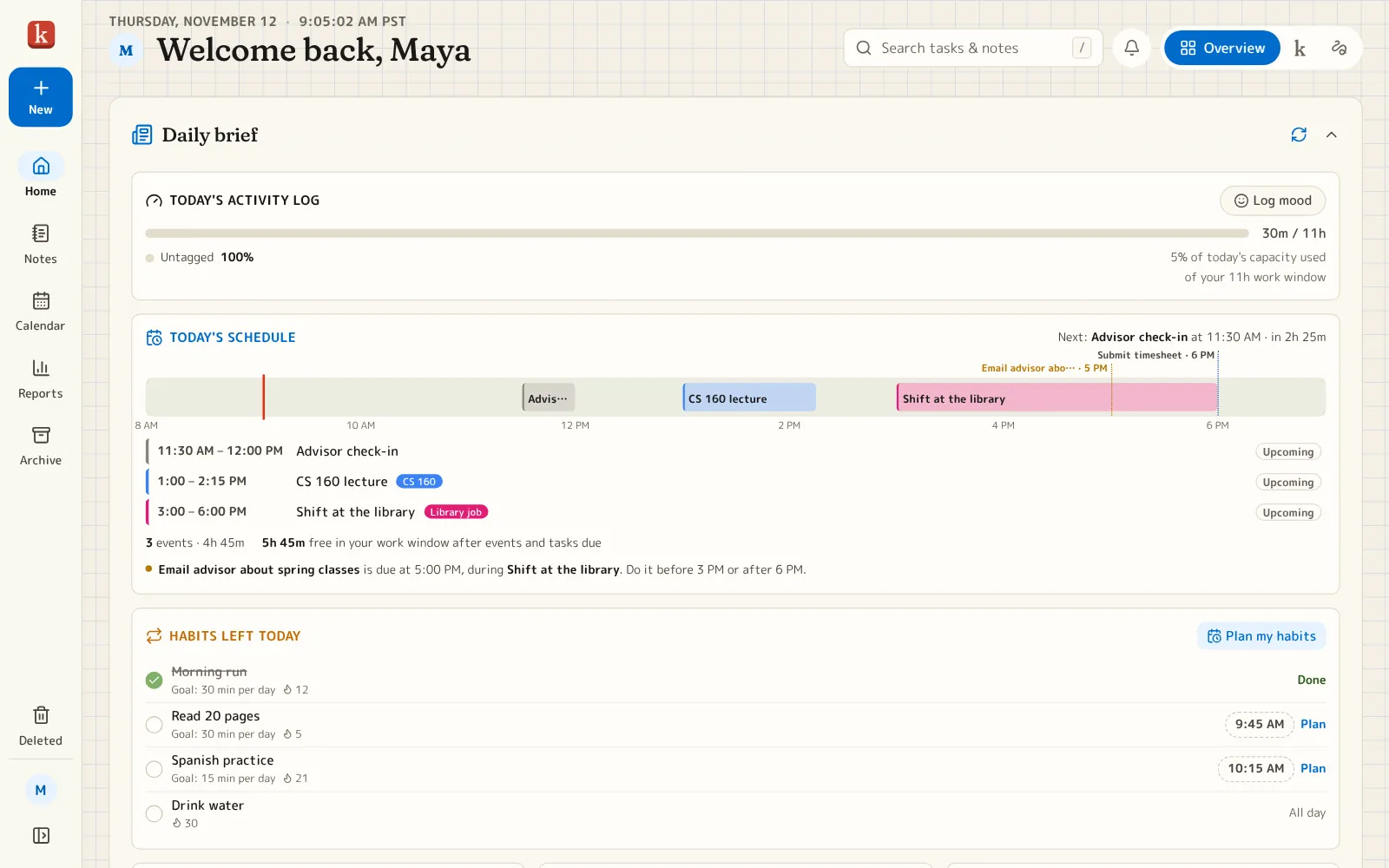
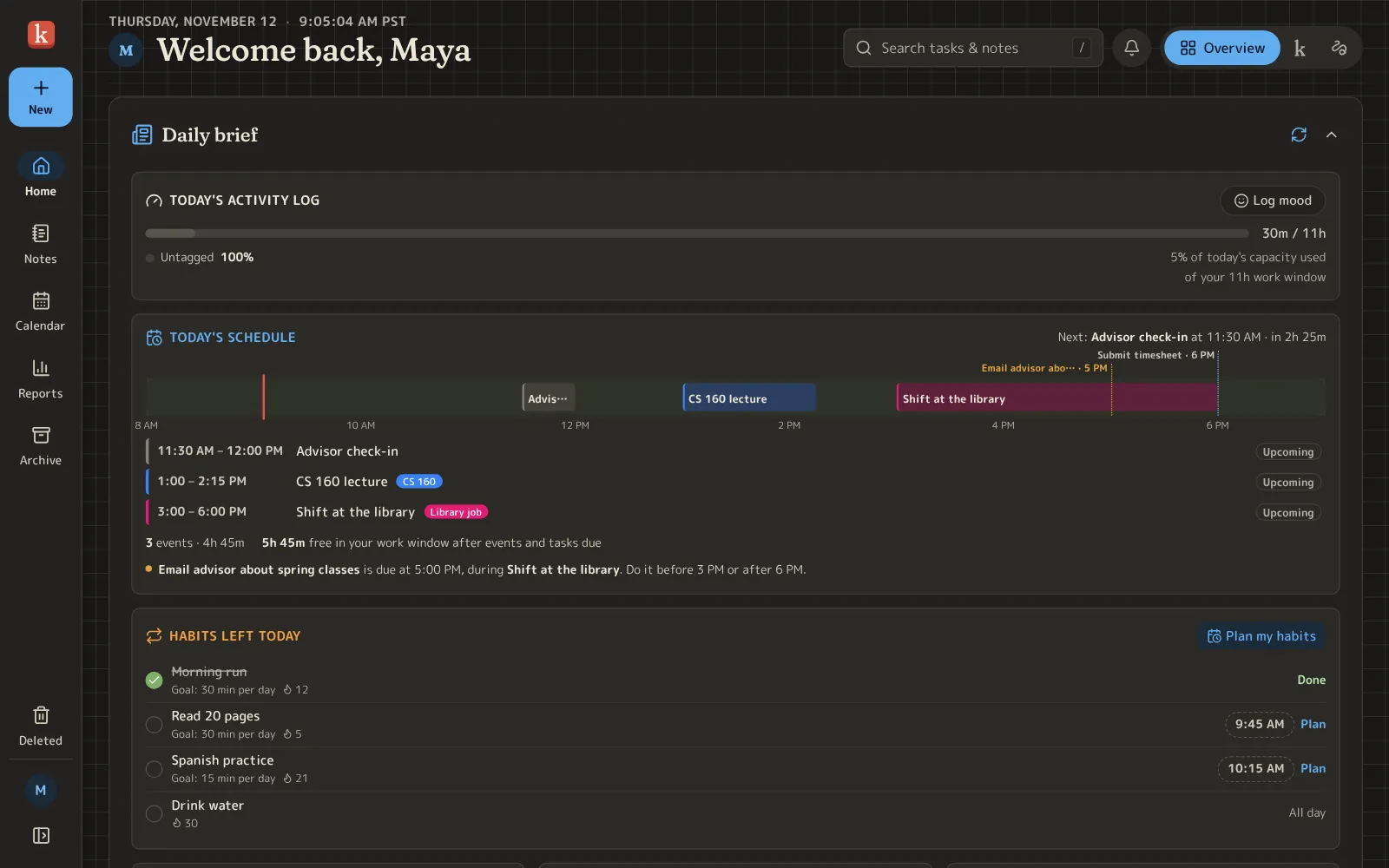
Start with the Daily brief
What slipped, what's due today, whether your plan fits the hours you have, and a short Focus next list. Worked out by rules, not a chatbot.
- Today's schedule with your classes and events
- Habits left today, each with a free time
- Gentle about slips: no red, no guilt
9:00 AMPlan
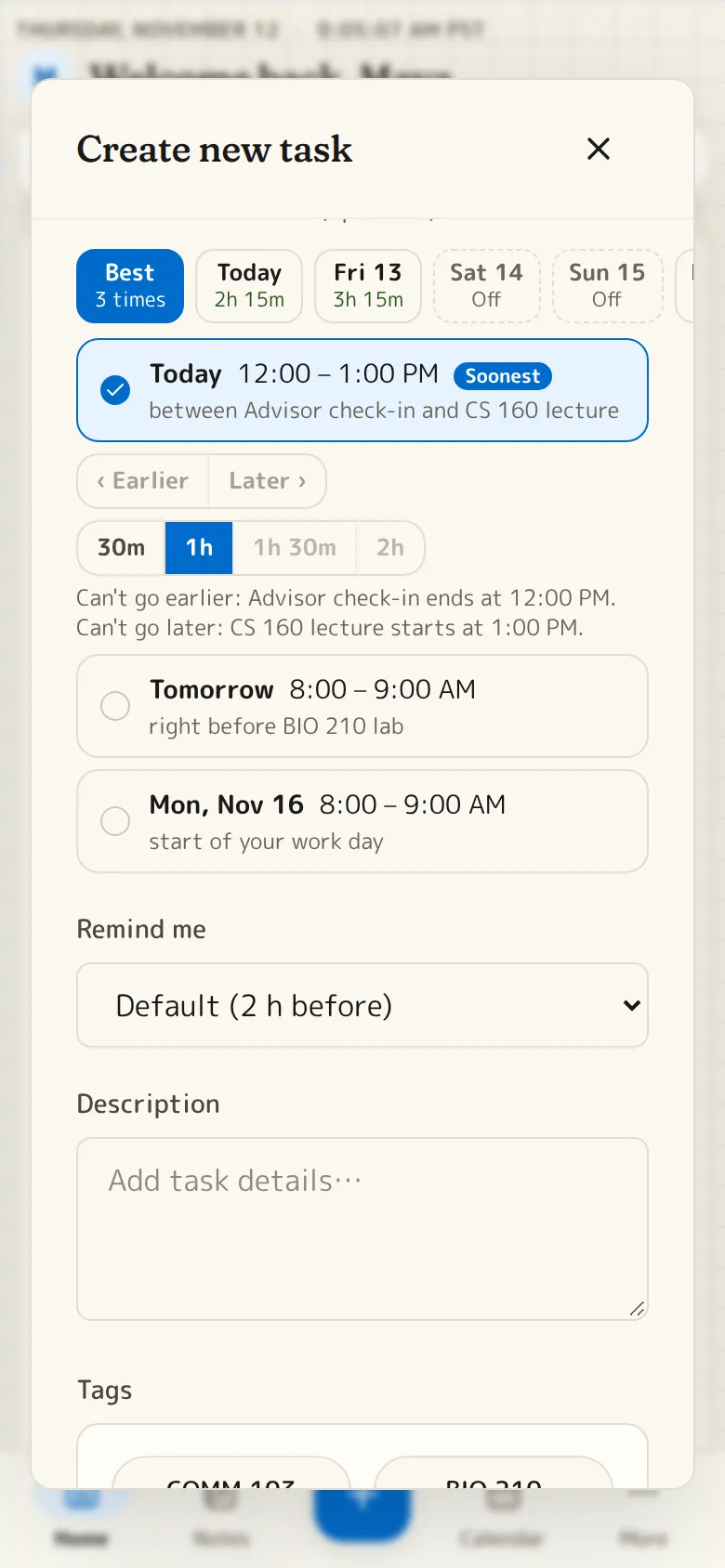
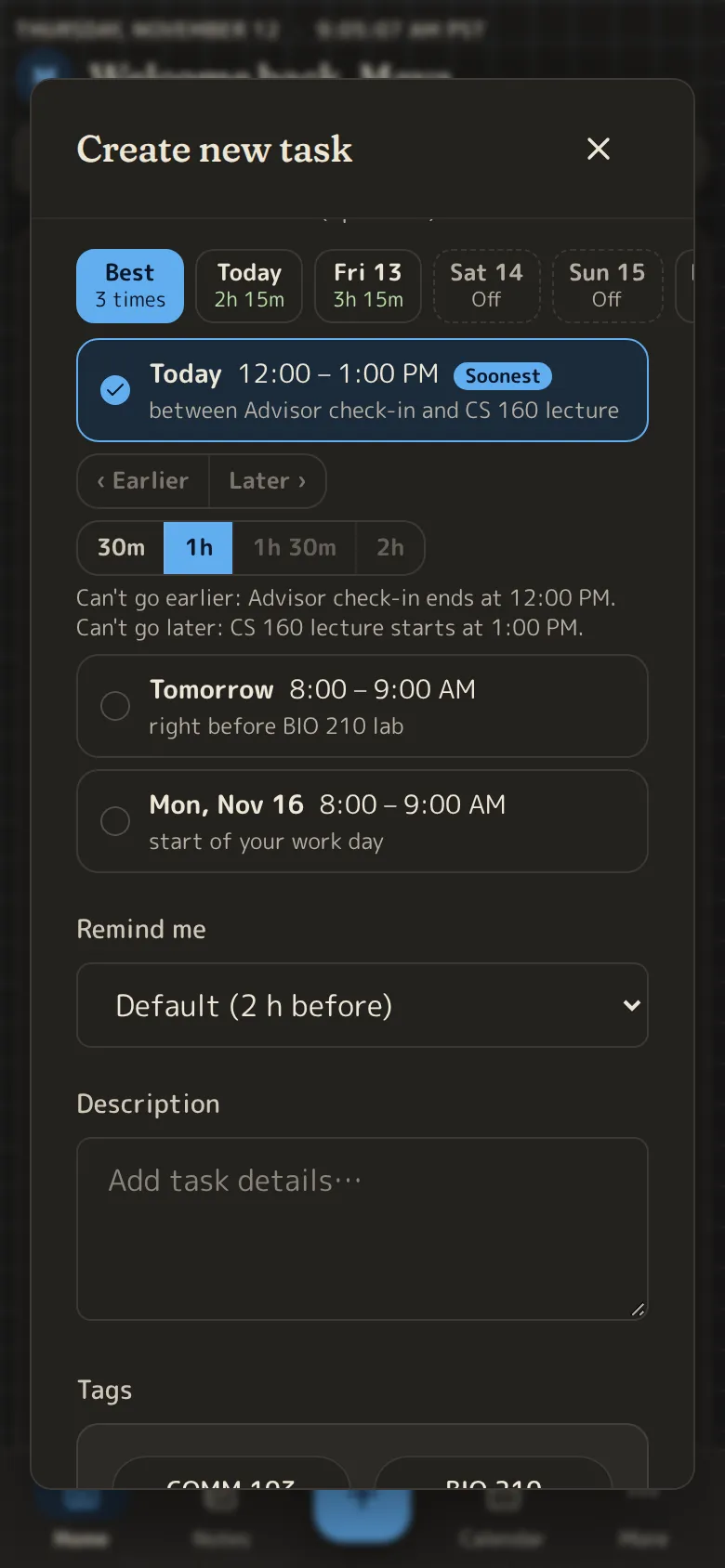
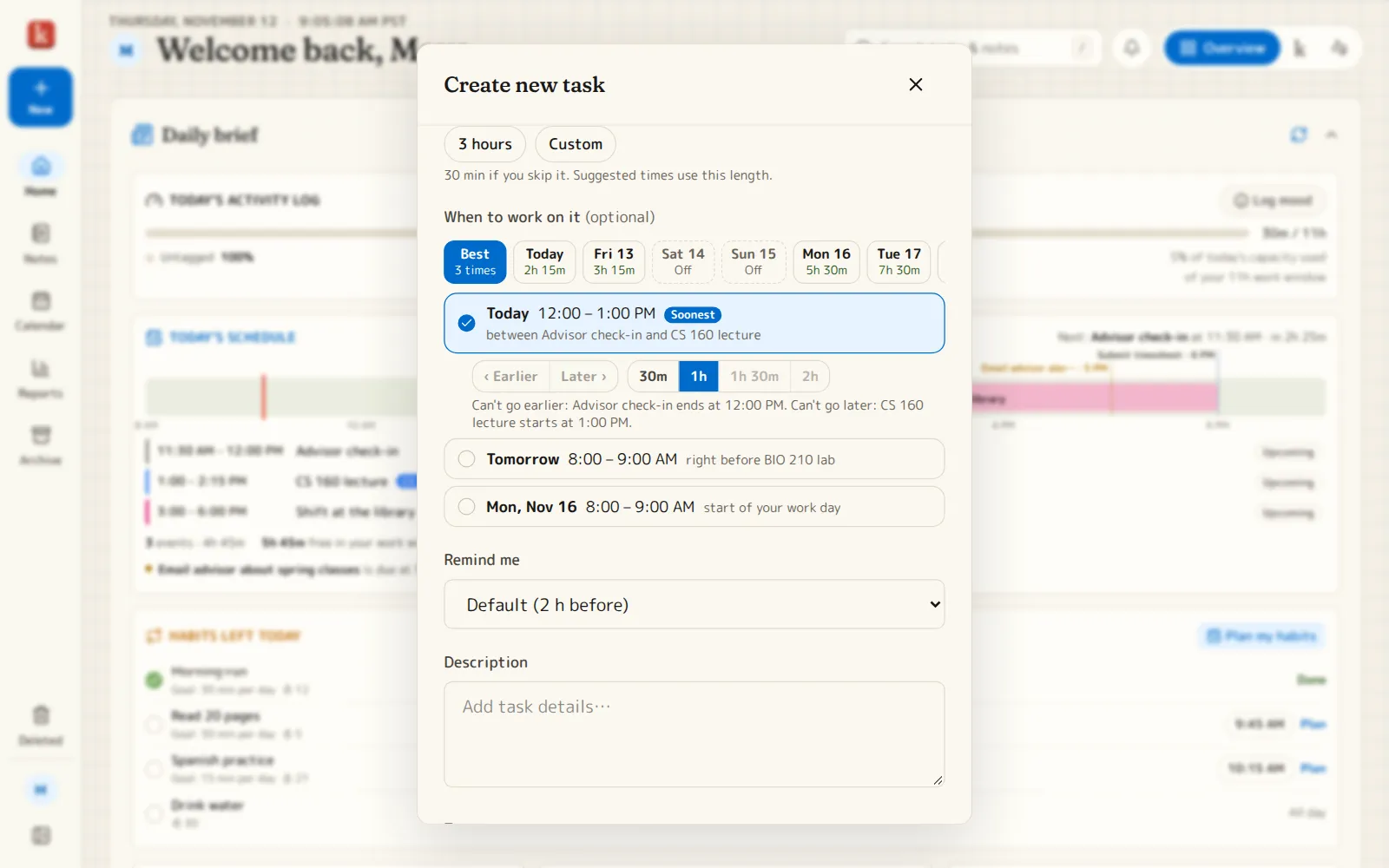
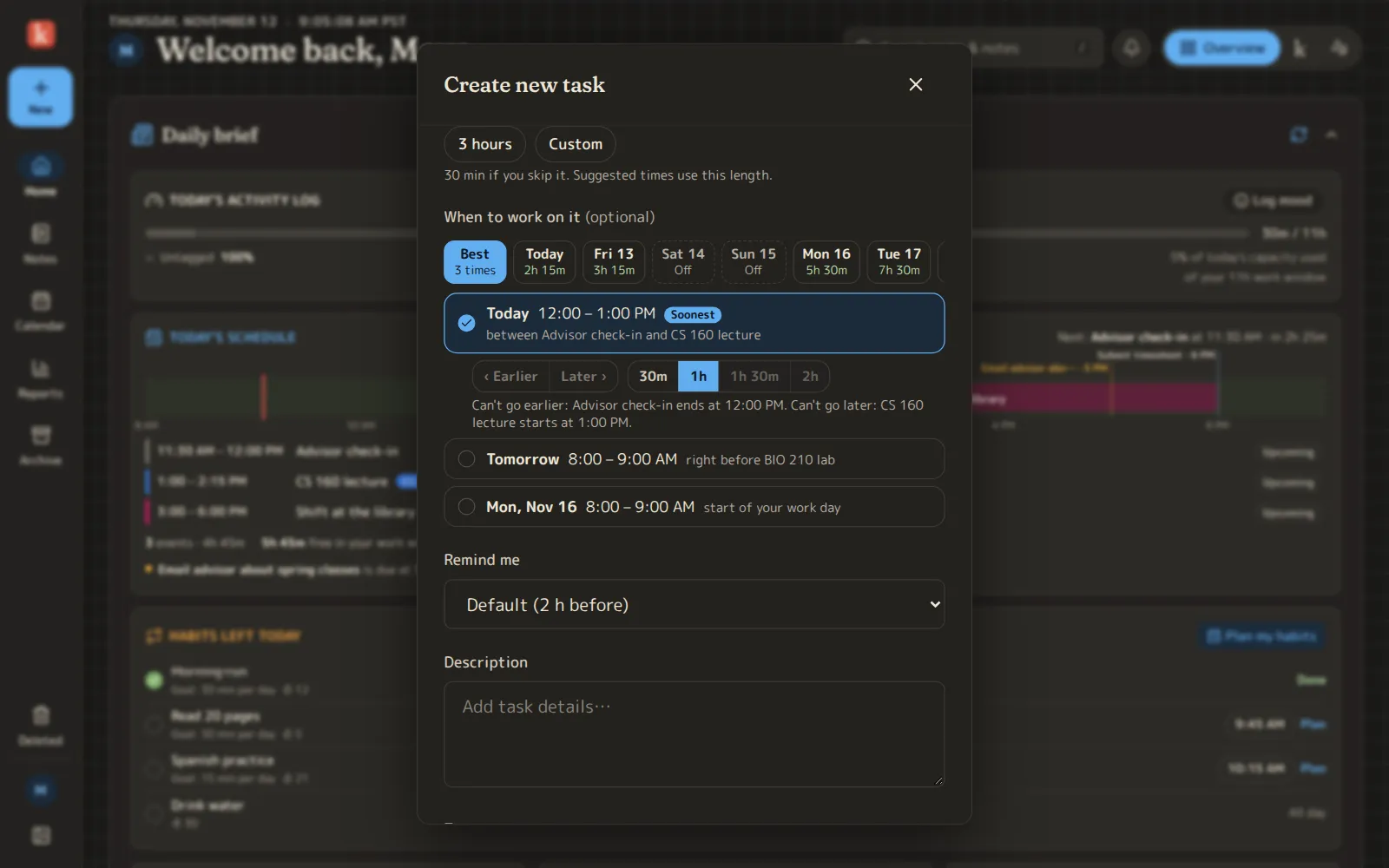
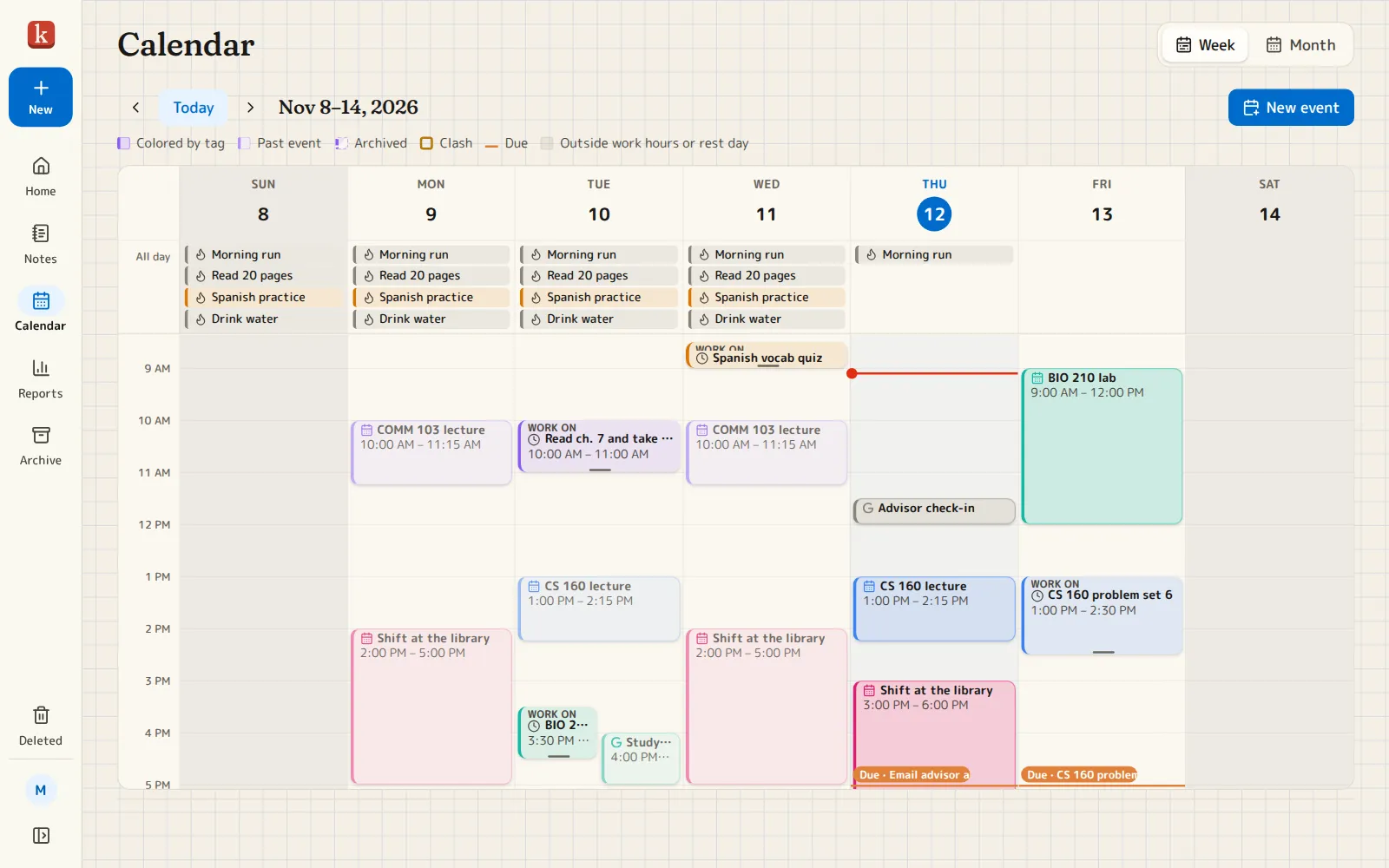
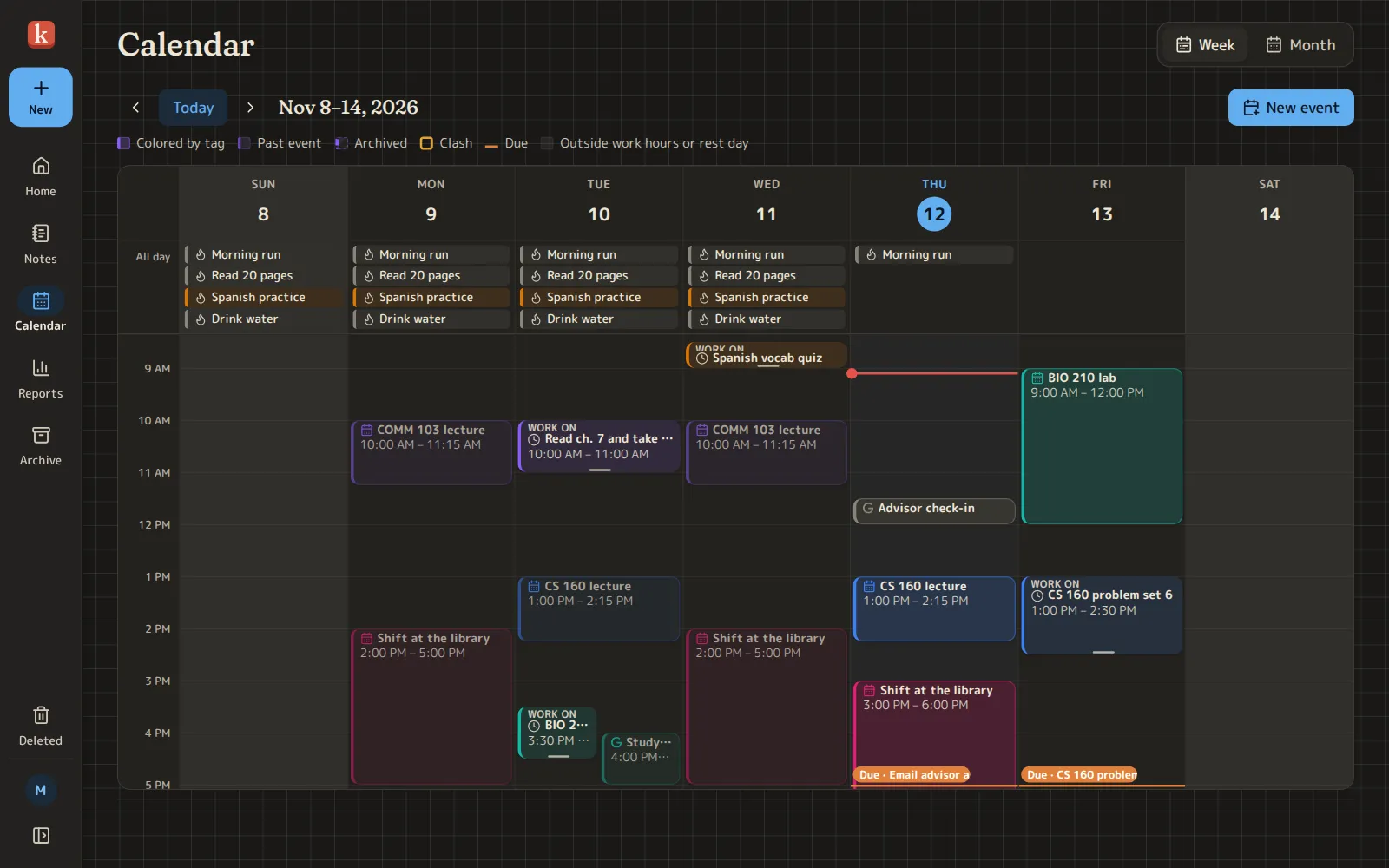
Pick a time, not just a deadline
Add a task with how long it takes, and kanso suggests up to three free times before it's due, around your classes, shifts and other work. Pick one and it lands on your week as a work block.
- A Which day strip with each day's free time
- Earlier or Later, and it says what's in the way
- Linked tasks planned in order with Plan all
11:15 AMFocus
Between classes, start a focus session
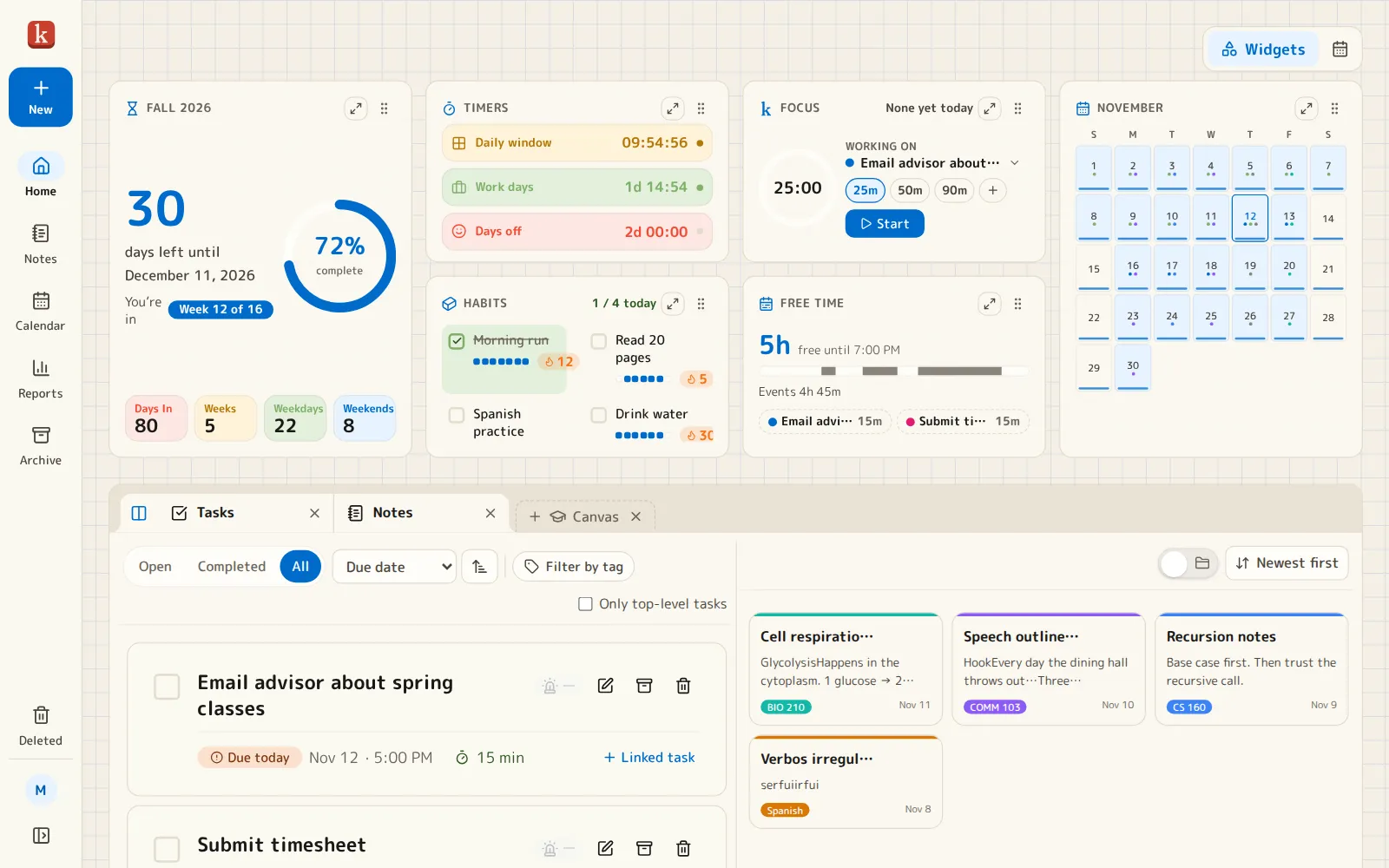
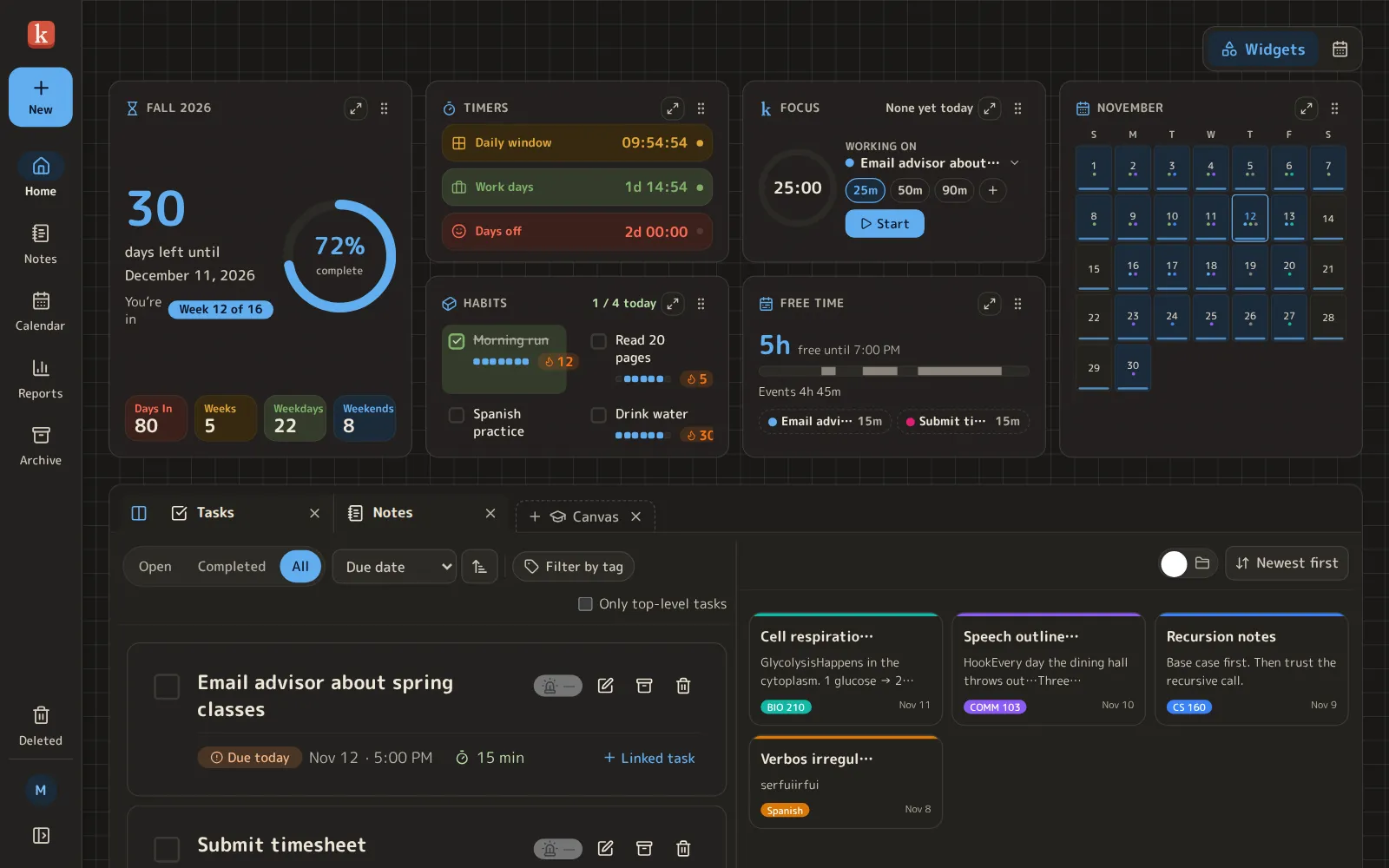
The Focus timer runs 25, 50 or 90 minutes, or a length you pick, on a task and saves the session as a work block. The Free time widget shows how much of today is still open, with tasks that fit.
- Ctrl + Zen: kanso mode hides the dashboard and leaves your lists
- A term countdown to the last day of the semester
2:00 PMWrite
Notes that keep up with lectures
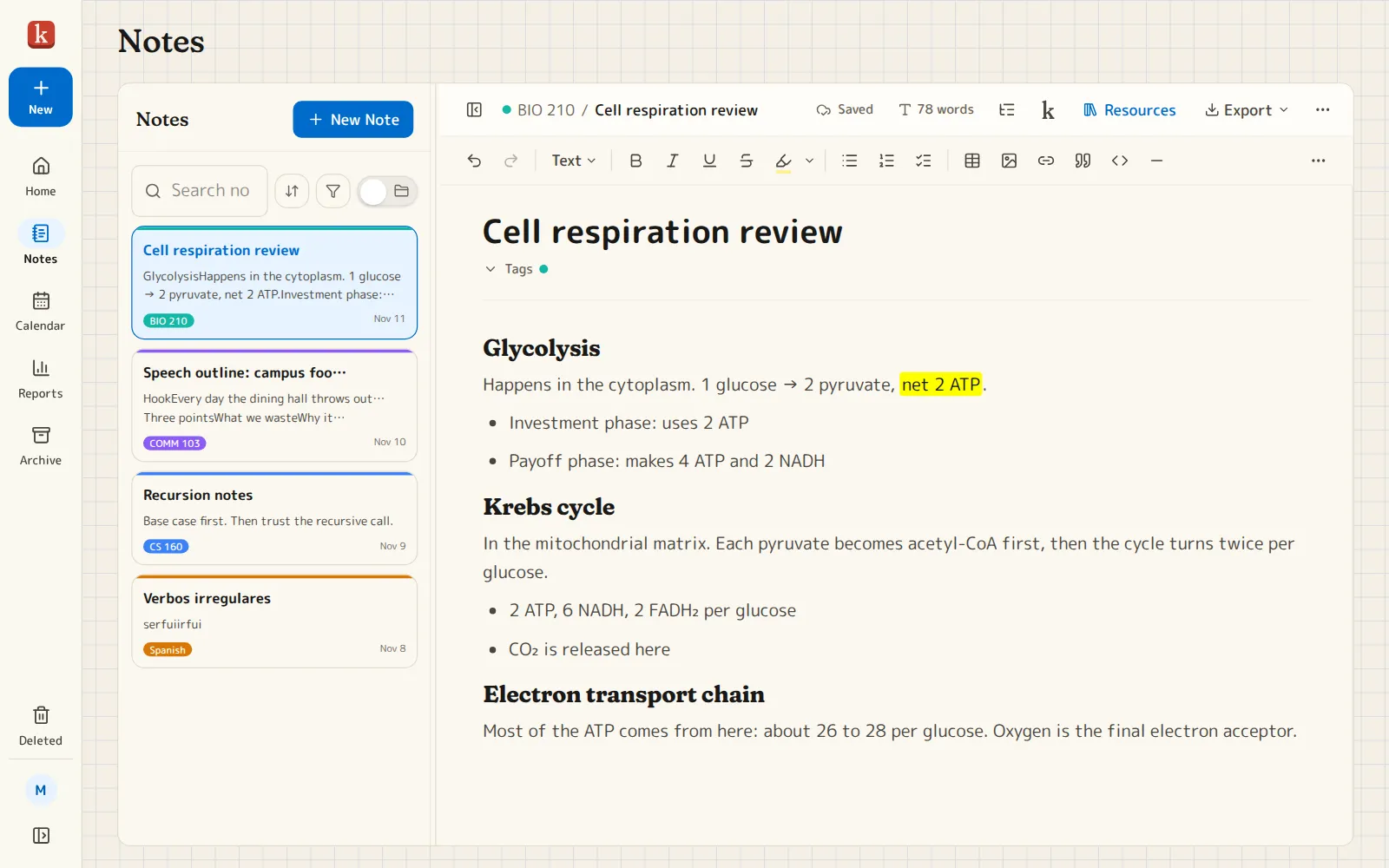
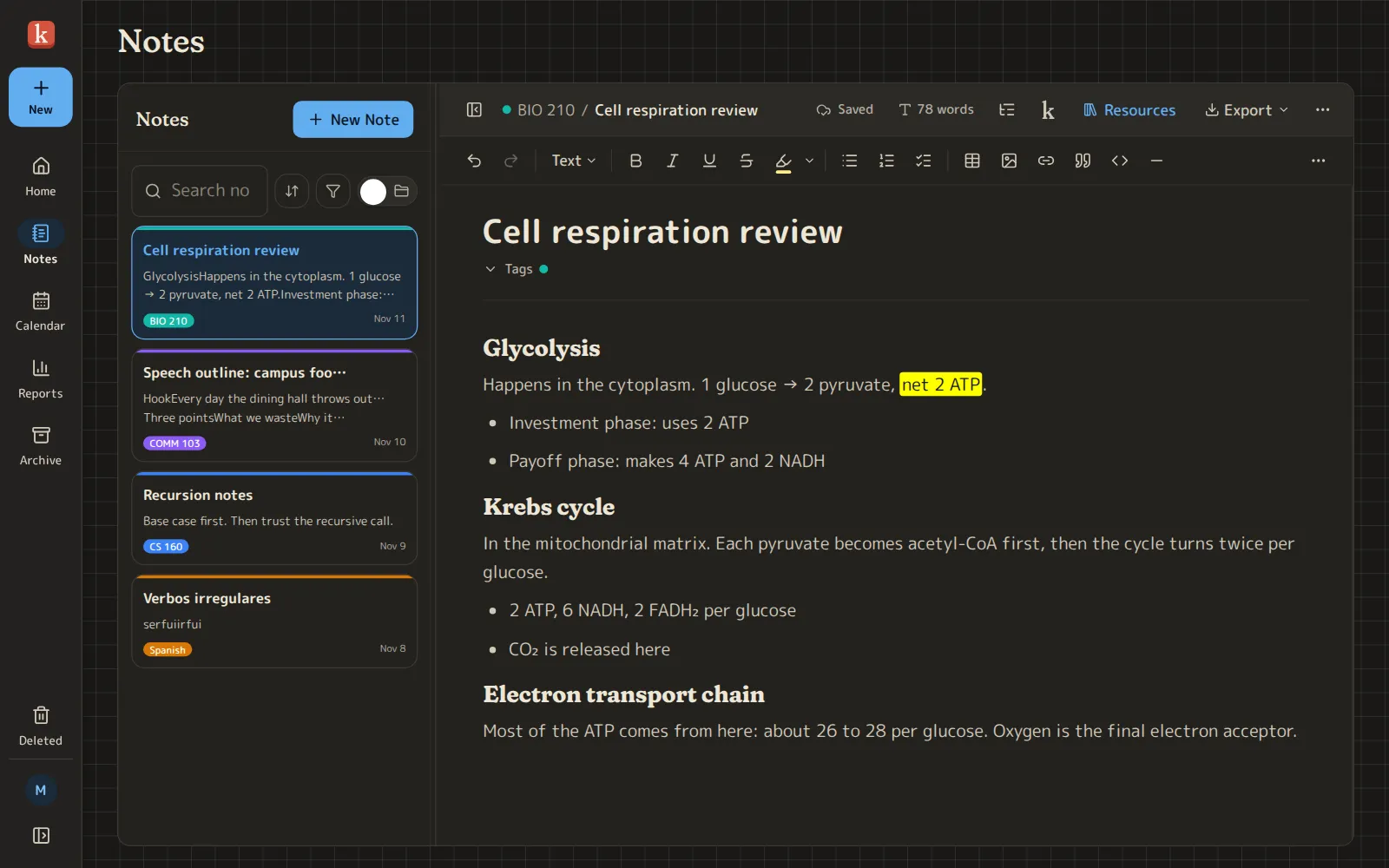
A rich editor with tables, highlights, checklists and a slash menu. Notes file themselves into tag folders, export to PDF, and keep track of the time you spend in each.
- Press the k for focus mode while you write
- Learning resources: one video, one article and one exercise, every link checked
6:00 PMCall it a day
Check in with yourself
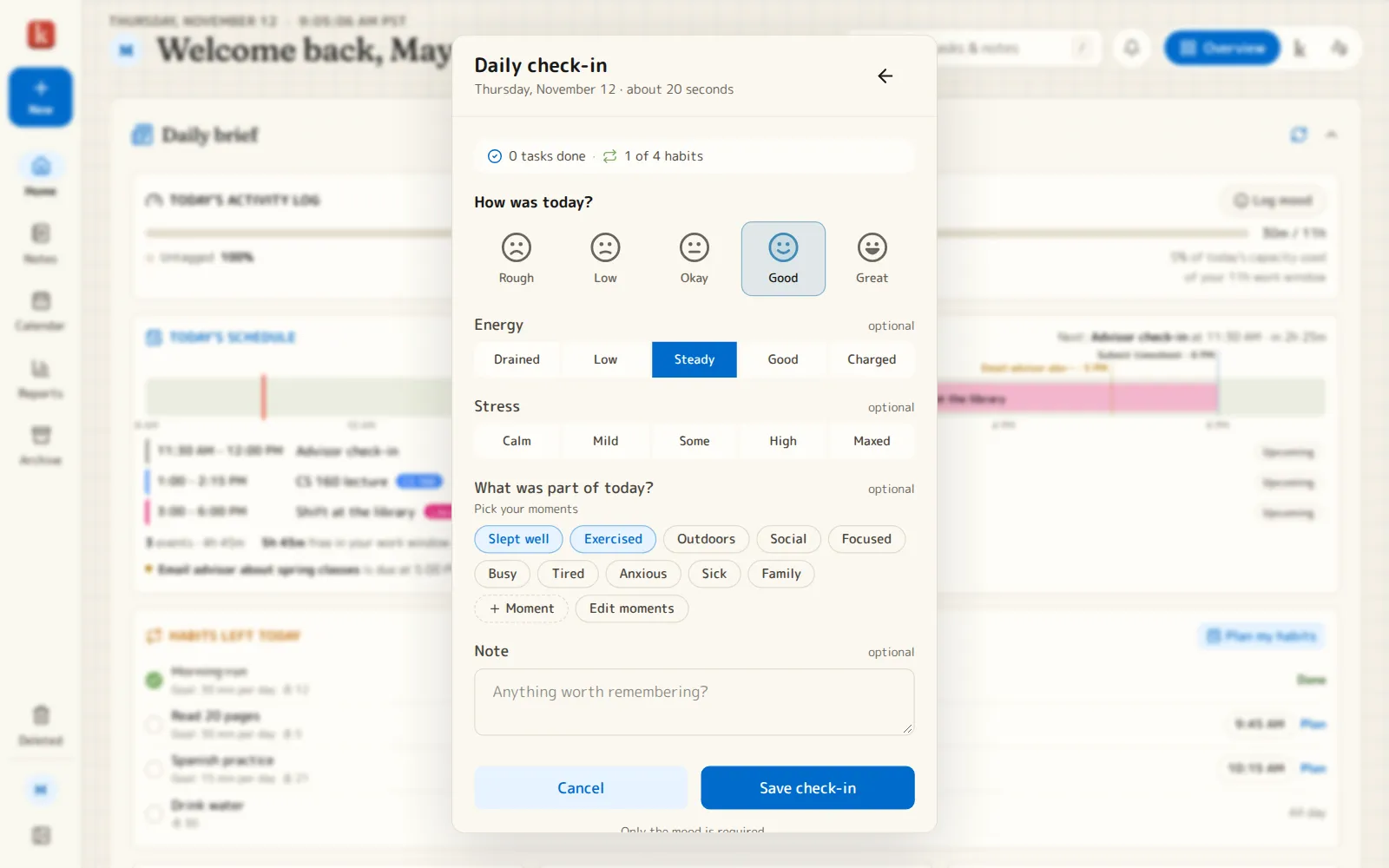
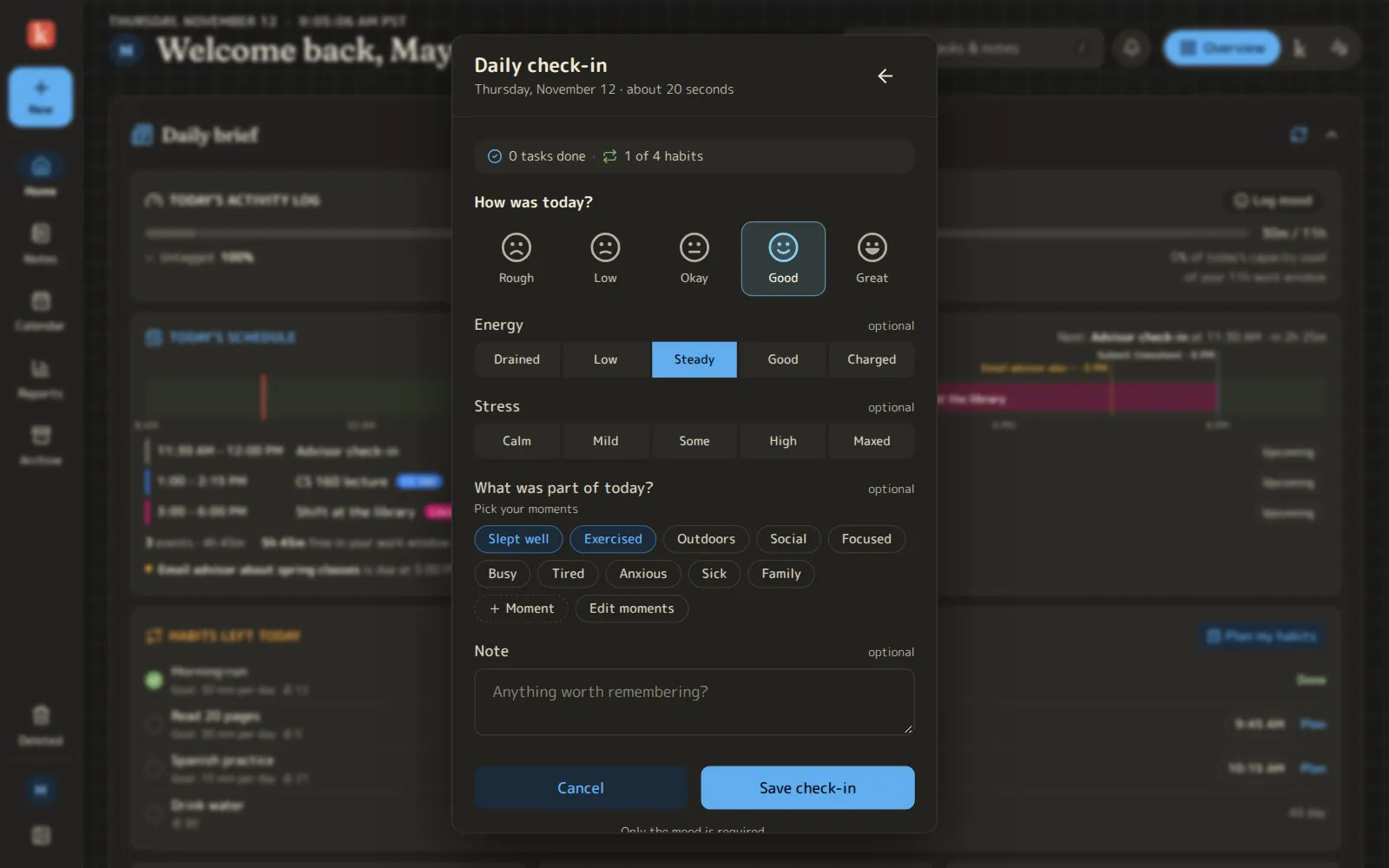
Log the day's mood in a tap, then add energy, stress and moments like Slept well or Exercised. It stays private, out of the Daily brief and away from AI.
- Weekly and monthly check-ins, if you want them
- Reminders that respect your quiet hours
SundayLook back
See where your week went
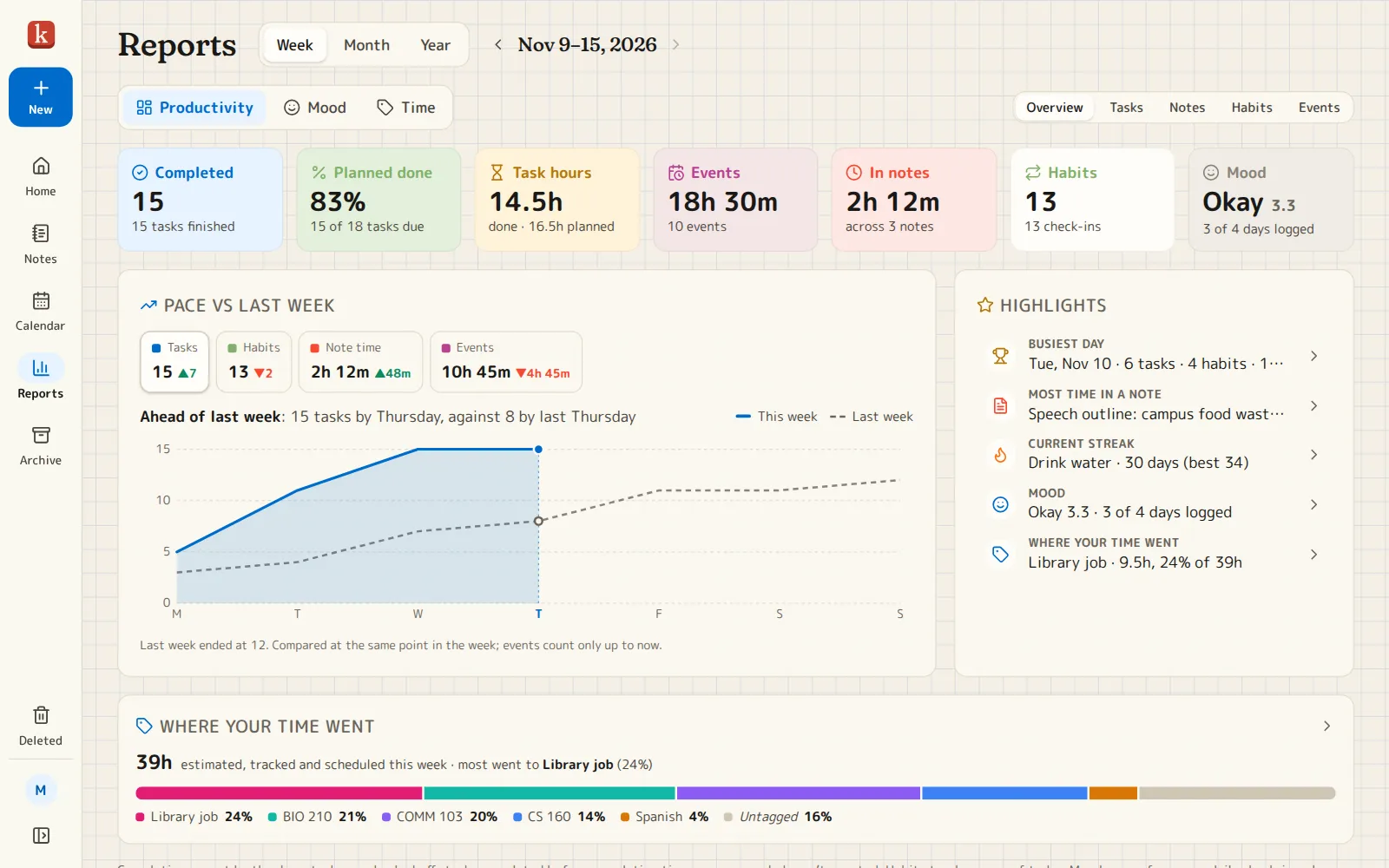
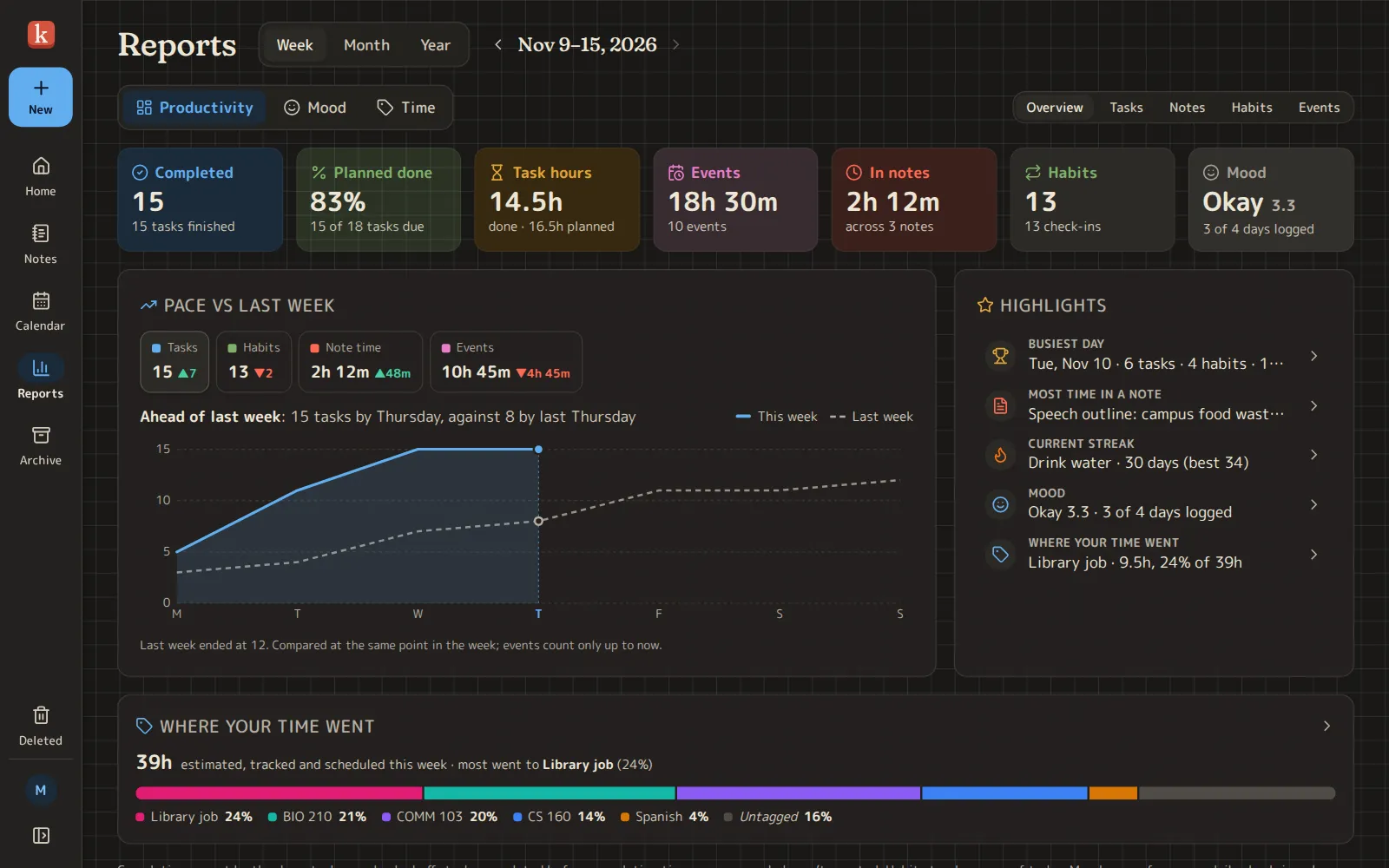
Reports compare your pace with last week, show where your time went across tasks, notes, habits and events, and explain your mood patterns in plain sentences.
- Patterns like “Your energy was lower on Library job days”
- Any week, month or year
Who it's for
For demanding majors who procrastinate from overwhelm, not laziness.
“I have a lab report, a problem set and a shift. Where does it all fit?”
“My syllabus lives in Canvas and my life lives in Google Calendar.”
“I never know if I'm actually doing better.”
Instead of four apps
| You need | Usually | In kanso |
|---|---|---|
| A to-do list | Task app | Tasks with suggested work times |
| A calendar | Calendar app | Week view with work blocks and Google events |
| Notes | Notes app | Notes filed by tag, with PDF export |
| Habits and mood | Two trackers | Habits, check-ins and patterns |
| “What do I do next?” | Guesswork | The Daily brief |
And everything else a semester needs
Google Calendar
A one-way import. Tag, drag and edit your events in kanso; Google stays as it was.
Canvas
Connect a calendar feed or a token. Assignments become tasks that follow Canvas.
Habits
Streaks, a 30-day history you can fix, and a free time suggested each day.
Linked tasks
Break a big project into steps that lead up to it, then plan them all at once.
Work blocks
Drag and resize planned work on the week view. It snaps to 15 minutes and flags clashes.
Notifications
Task, event and check-in reminders, with quiet hours.
Make it yours
21 accent colors, six paper styles, light and dark, and a dashboard you arrange.
Nothing lost
Archive anything. Recently deleted keeps it for 30 days.
Privacy and trust
Rules, not a chatbot
Suggested times and the Daily brief come from clear rules you can follow. AI is used only when you ask for learning resources on a note.
Your notebook stays yours
Every request is scoped to your account. No ads, no tracking cookies, and your data is never sold. Delete it all from Settings.
Built in the open
The app, the API and the AI service are open source, so you can check every claim on this page.
Questions
Straight answers, no fine print.
Is kanso free?
Yes. kanso is free and open source. There are no plans to pick and no card to enter.
Can I try kanso without an account?
Yes. “Try the demo” opens a private sandbox with sample tasks, notes, habits and events, with no email needed. It's deleted after about a day. Canvas and Google Calendar aren't available in the demo.
Does AI plan my day?
No. Suggested work times, the Daily brief and the Free time widget come from clear rules about your work hours, events and deadlines. AI is used only when you ask for learning resources on a note, and mood check-ins are never sent to it.
Will kanso change my Google Calendar?
No. The Google Calendar import is one-way. Imported events show on your kanso calendar, where you can tag, edit, drag or archive them, but those changes stay in kanso. Nothing is ever written to Google.
Is my data private?
Yes. Every request is checked and limited to your own account, so no one else can see your tasks, notes or check-ins. There are no ads or tracking cookies, your data is never sold, and you can delete your account and everything in it from Settings.
Can I export my notes?
Yes. Any note exports to PDF with its formatting, tables and images.
Does kanso work on my phone?
Yes. kanso runs in any modern mobile browser, with layouts made for small screens, and there's nothing to install. It's at its best on a laptop, where you plan the week.
Does kanso work with Canvas?
Yes. In Settings → Canvas, connect with your private calendar feed link (read-only, no school approval needed) or, if your school allows it, a personal access token. Assignments you add become tasks that follow Canvas: the due date moves when Canvas changes it, and the task completes when Canvas counts the work done.
Free. Calm. Yours.
No plans to pick and no card. Open the demo to see a week already planned, then make an account when you want to keep it.
- Free and open source
- Works in any browser
- Light and dark